
Quick start
From zero to your first retrospective in under five minutes. Sign up, create a board, invite your team, and run the session.
Create your account
Sign up with your work email and a password. If your organization uses SSO (Okta, Azure AD, Google Workspace), type your email and VeloBoard will detect it and switch the form to Continue with SSO — no password needed.
New organizations start on the Free plan (3 active boards, 10 members). The first person to create an org becomes its owner; you can invite admins and transfer roles later.
Open the dashboard
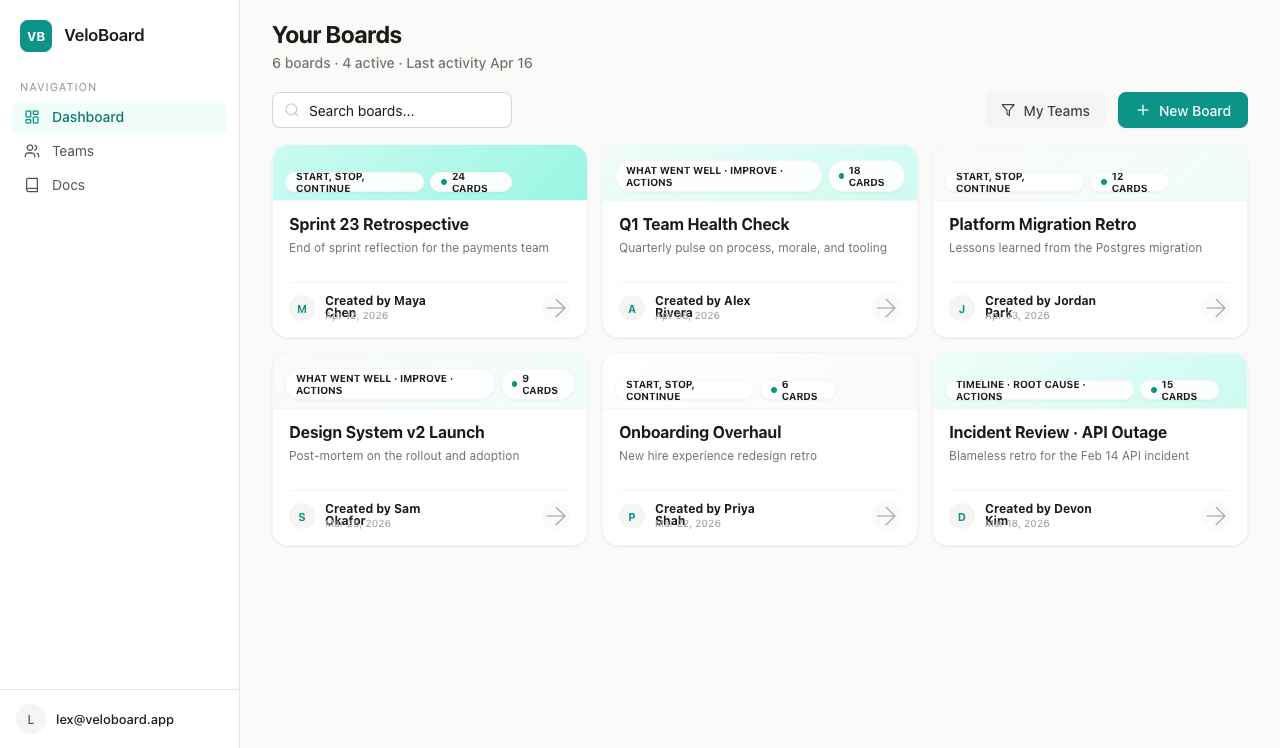
Every workspace opens to Your Boards — a grid of your boards, sorted by activity. It’ll be empty on day one.
Create your first board
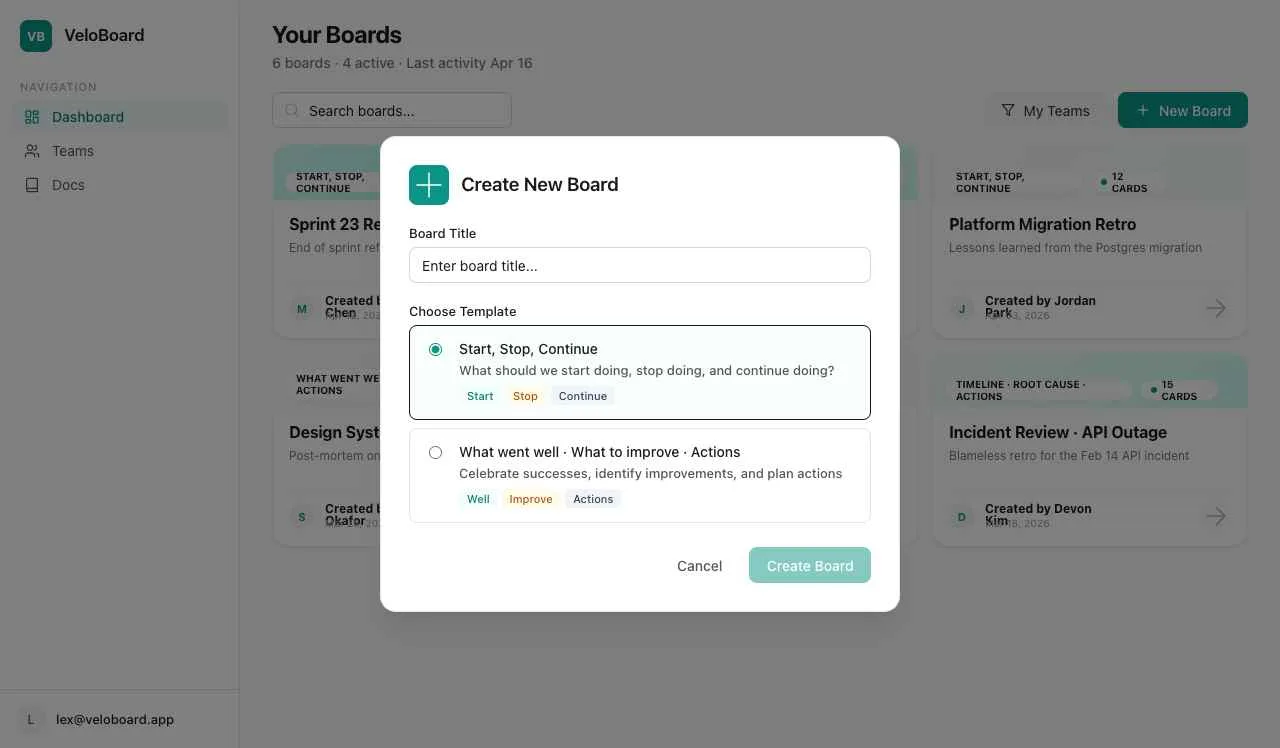
Click New Board in the top right. Pick a template (we recommend Start, Stop, Continue for your first retro) and give your board a clear title. If your organization has teams with Jira projects configured, you’ll also pick a team so the board inherits Jira access.
Board titles that age well
- Include the sprint, quarter, or event —
Sprint 23 Retro, notRetro - Include the team if your workspace has multiple —
Payments · Sprint 23 - Skip dates in the title; VeloBoard stamps them automatically
Invite your team
Inviting happens at the organization level, not the board level. Open the user menu in the sidebar, go to Organization, and use the Members tab to invite by email. Invitees receive a link; they create an account (or sign in with SSO) to join.
If you’ve set an email domain for your organization, anyone who signs up with that domain joins automatically — great for internal onboarding.
Run the session
Start the timer
Click the timer in the board header and pick a duration (default is 5 minutes). The timer is synced across everyone on the board in real time.
Everyone adds cards
Click Add Card at the top of a column. Cards appear for everyone as soon as they’re posted — agree as a team to not read the board until the timer runs out if you want a "silent writing" phase.
Discuss and vote
Thumbs-up cards that resonate — one vote per card per person. Sort a column by Votes to surface the top items.
Turn top items into actions
Move a card into an Actions column, or click the card’s ··· menu and Create Jira Issue to send it straight to your tracker. See Jira integration.
What’s next?
- Creating & running a retro — the full facilitation playbook
- Board templates — pick the right format
- Team & workspace admin — for setting this up at your org